Home / Blog / Guides & Setup
Guides & SetupQR Code Ordering for Restaurants in India: How It Actually Works
What QR code ordering is, the three flows Indian restaurants run, what you need before you start, and what it does not replace.
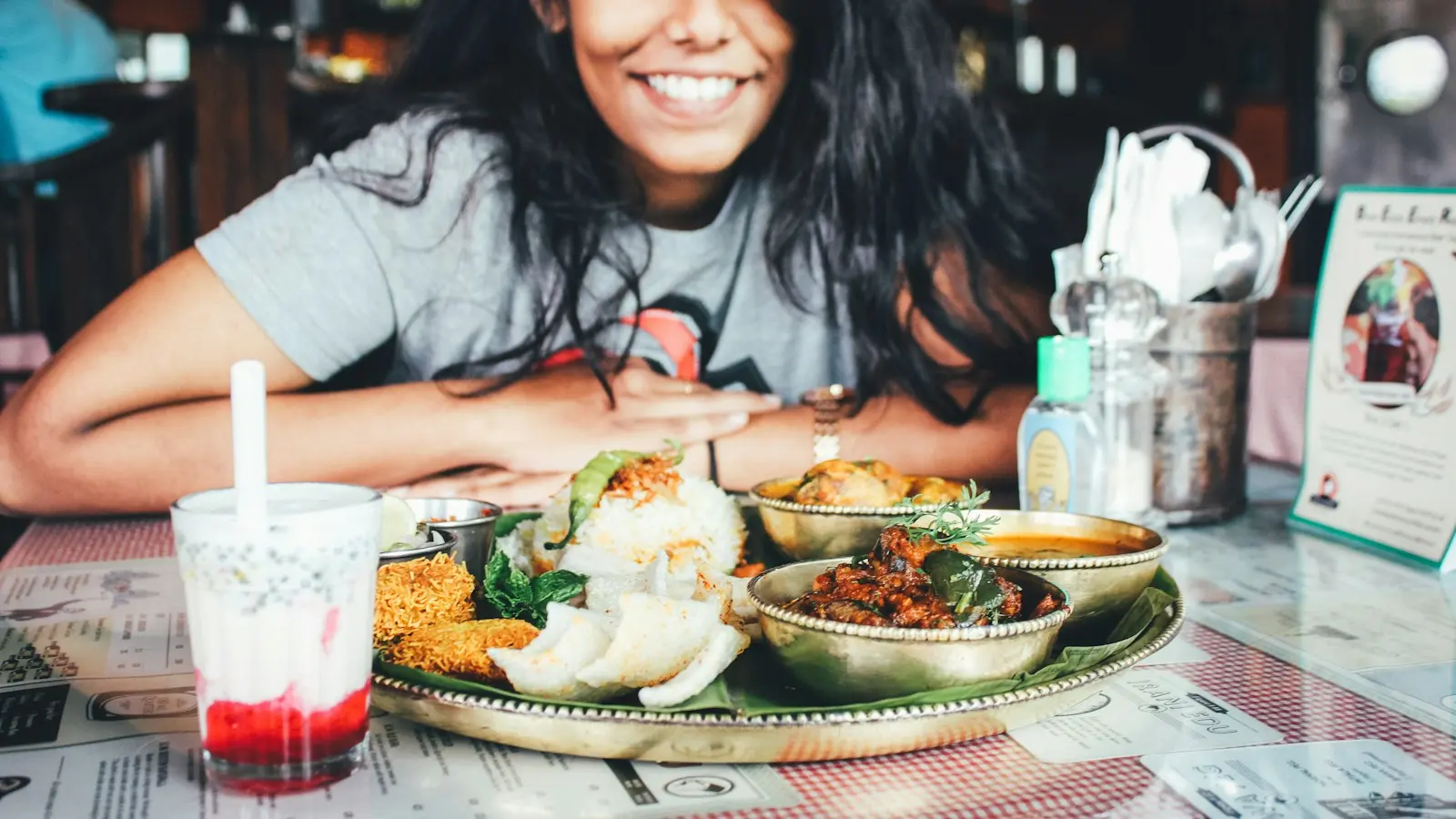
QR code ordering is a printed code on the table or counter that opens your menu in the guest's phone browser, so the guest browses, orders and pays without waiting for a server or an app download. In India it usually runs in one of three flows: the guest orders and pays, the guest only reads the menu and pays the bill, or the guest pays before the food is made.
This guide covers what you need before you print anything, how an order travels from a phone to your kitchen, the three flows and who each one suits, and the parts of service that QR ordering does not remove.
What is QR code ordering?
A QR code holds a link. Scanning it with a phone camera opens that link. For a restaurant, the link points at your digital menu, and the code printed on table 12 points at a slightly different link from the one on table 13, so the system knows where the food is going.
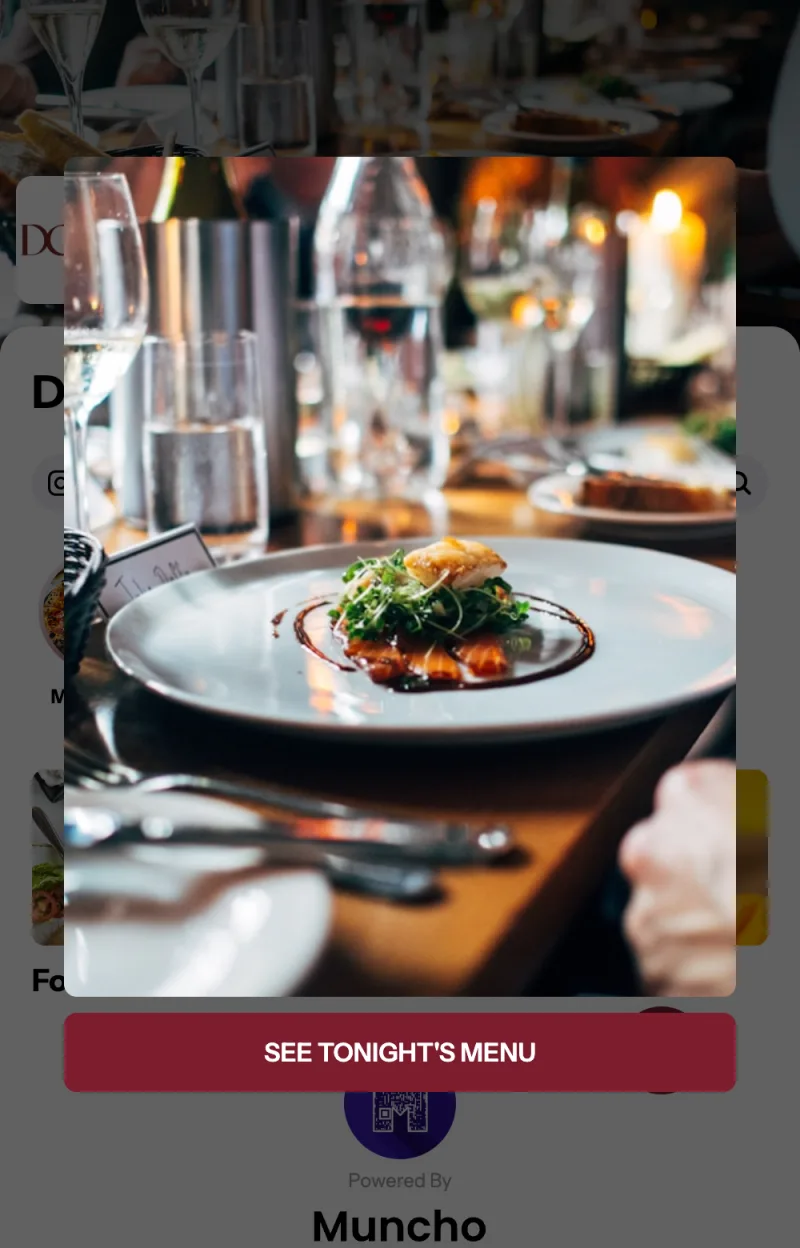
Nothing is installed on the guest's phone. The menu is a web page. That is the whole reason the format spread through Indian restaurants: no app, no login for the guest to remember, and no hardware on the table.
In Muncho the guest menu lives at app.muncho.in, and a dine-in table link looks like https://app.muncho.in/#/home/your-outlet/12. Your pickup and delivery links are the same shape with pick_up or delivery in place of the table number.
How does QR code ordering work, step by step?
- Your menu is loaded into the system. At a POS-integrated venue the menu syncs across from PetPooja or Prism, including prices, variations, add-ons, taxes and packaging charges. See how your menu gets into Muncho for what you control afterwards.
- Each table gets its own code. Tables come from the POS sync, and the QR Codes page generates one code per table, plus separate codes for pickup and delivery.
- The guest scans and lands on your menu. What they see first depends on your Initial login setting: nothing, an optional sign-in, or a mandatory one.
- The guest identifies themselves, if you ask them to. The options are customer details, phone number with OTP, a table PIN, or a table PIN with OTP.
- The guest orders. The order either goes straight through, or waits in the waiter app for a staff member to accept it. That is the Order flow setting.
- The order reaches your POS. Muncho registers the customer, validates the table, and sends a KOT. Your POS prints it and your kitchen works from that ticket, exactly as it does for a server-entered order.
- The bill is settled. The guest can pay from their phone, or your staff can settle at the till as usual.
Every one of those steps exists in a dashboard you can look at today, so create an account and walk them in order before you print anything.
What do you need before you start?
Four things, and a fifth if you want guests to pay on their phone.
- A menu that is already digital. Muncho does not have an Add dish button. The menu comes from your POS sync or from an import your onboarding contact runs for you, so the menu you want on the QR has to exist somewhere structured first.
- A table list. Tables also come from the POS. There is no create-a-table screen in the dashboard, which is deliberate: the table numbers on the QR codes have to match the table numbers on your bills.
- A POS link, for dine-in. Dine-in ordering runs at PetPooja and Prism venues, because a dine-in order has to become a KOT and a bill in the POS. If you do not run a POS, QR ordering still works for pickup and delivery, where Muncho is the order system in its own right.
- Somewhere to print. The QR Codes page gives you a PNG per table, a ZIP for all of them at once, and a list of the raw URLs. Sizes and layout are covered in table QR setup.
- A payment account, if guests are going to pay on their phones. That is a Razorpay account, either created for you or your own. See Razorpay for restaurants.
Which QR flow fits your restaurant?
The single decision that changes everything downstream is what the guest is allowed to do after scanning.
| Flow | What the guest does | When the money moves | Suits |
|---|---|---|---|
| Order and pay | Browses, orders, pays from the phone | At the end, on the bill, or per order | Casual dining, pubs, cafes with table numbers |
| View and pay | Reads the menu, orders through a server, pays from the phone | When the bill is ready | Fine dining that wants the server interaction kept |
| Pay first | Pays before the order is sent | Up front | High-volume counters, food courts, busy weekends |
| View only | Reads the menu, nothing else | Never, on the phone | Catering menus and any list you only want people to see |
The long version of that decision, with what changes for your staff in each case, is in order and pay vs view and pay vs scan and pay.
What changes for your staff?
Less than owners expect, and in a different place than they expect.
The order-taking trip disappears. Nobody walks over, waits, writes, walks back and keys it in. What replaces it is a different rhythm: orders land, and someone has to notice them. If you set Order flow to "Your staff accept it first", a staff member has to open the waiter app and accept each order, which is the safe choice for the first few weeks. If you set it to "Straight to the kitchen", the order is accepted the moment the guest sends it and the KOT prints on its own.
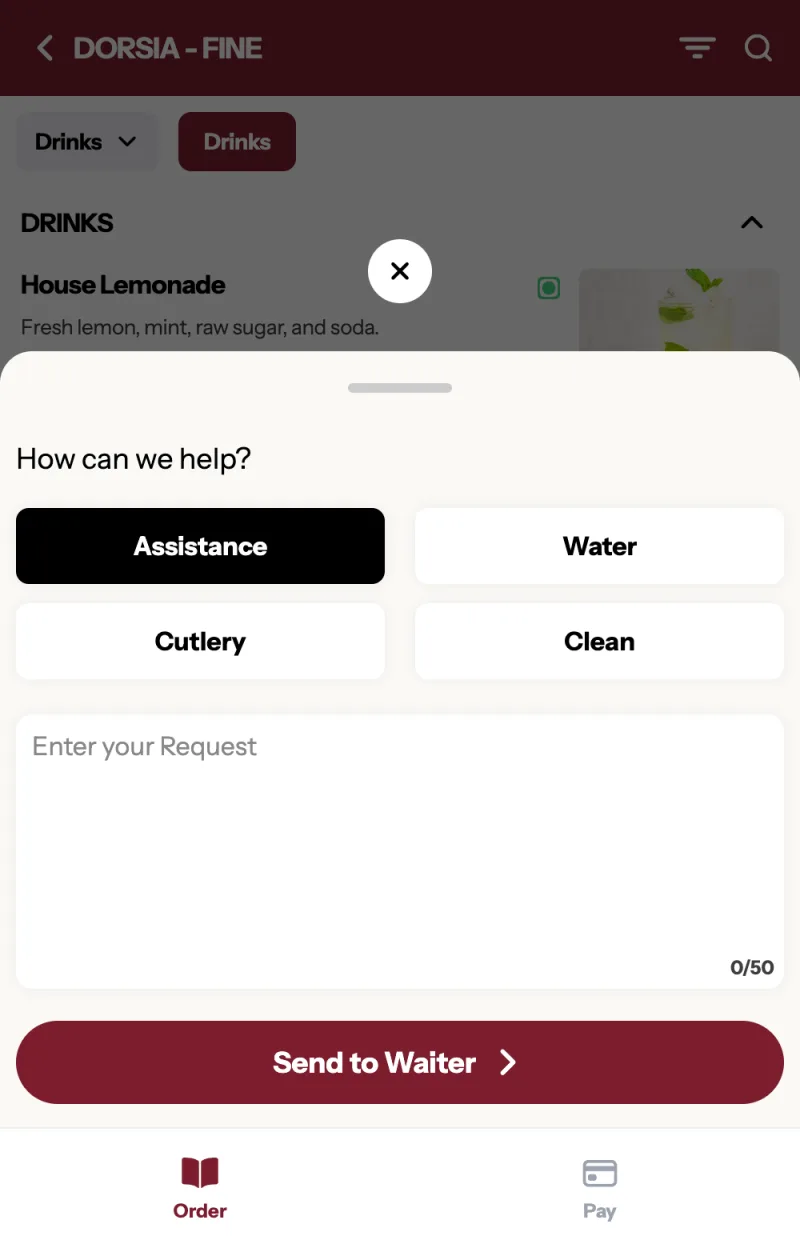
Guests also get a Waiter button on the menu. It opens a short sheet headed "How can we help?" with chips for Assistance, Water, Cutlery and Clean, plus a free-text box. Those requests appear in the waiter app. In practice this is the change staff feel most: the requests that used to be a raised hand across a loud room now arrive as a list.
There is no separate kitchen screen in Muncho. Your kitchen works from the POS printout and your staff work from the waiter app and the dashboard Orders screen.
What QR ordering does not replace
Being honest about this saves a lot of grief in month one.
- It does not replace your POS. At a dine-in table, the POS still owns the bill, the taxes and the day-end. Muncho pushes orders into it.
- It does not accept or reject orders for you. At a PetPooja venue the accept or reject decision is the POS's, returned on a callback.
- It does not track the order after dispatch at a PetPooja venue. Out-for-delivery and delivered statuses do not come back from PetPooja, so those states are driven by Shiprocket or marked by staff.
- It does not remember a delivery guest's address. There are no saved addresses, so a repeat delivery customer types the address again each time.
- It does not remove the need to look at a screen. An unpaid bill is force-closed after thirty minutes and the table is vacated, which is a sensible default and also a reason to keep an eye on tables that are lingering.
How to set up QR ordering in Muncho
- Get the menu in. Request the POS link in the onboarding wizard, or have your onboarding contact import the menu. Confirm the categories, dishes and prices look right on the Menu page.
- Check your tables. Open QR Codes and pick the section. If it says "No Tables Found", the POS sync has not brought tables across yet.
- Set the rules. Open Dine-in Settings and set Table ordering, Initial login, Guest login and Order flow. The full breakdown is in Dine-in Settings explained.
- Decide who pays the fee. The Commission card on the same page has two options, Customer and You.
- Generate and print. Use Design QR to set the size and the wording, then Bulk Download to get the whole section at once.
- Run one table live. Put one code out, order from it yourself, watch the KOT print, settle the bill, then roll out the rest.
Is QR ordering worth it for a small restaurant?
The honest answer is that it depends on whether your bottleneck is service or seats. If guests routinely wait to catch someone's eye, QR ordering removes a real delay and usually adds items to the bill, because the menu is in front of the guest for the whole meal rather than for two minutes. If your floor is already fast and your covers are limited by the kitchen, the gain is smaller and the better first step is pickup and delivery on your own storefront, where the commission difference is arithmetic rather than a judgement call.
Dine-in QR ordering comes with both India plans: Plus Rs 11,999 and Pro Rs 23,999 a year per outlet, plus GST. Usage comes from your wallet. Payment fees apply when a guest pays through Muncho.
Questions restaurants ask
Do I need a POS to run QR ordering?
For dine-in ordering at a table, yes. Muncho creates and pushes a dine-in order into your POS, so table ordering runs at PetPooja and Prism venues. Without a POS you can still run QR ordering for delivery and pickup, where Muncho is the order system.
How many QR codes do I need?
One per table for dine-in, because the table number is part of the QR link. For pickup and delivery you need one QR each for the whole outlet, not one per table.
Do guests have to download an app?
No. The QR opens a web page in the phone browser. Guests may be asked for a phone number and OTP depending on the Guest login setting you choose.
How long does a menu change take to reach guests?
Usually about ten minutes, because the menu is cached. Press Update Menu in the dashboard header to push it out immediately.
Will my staff still be needed?
Yes. Guests placing their own orders removes the order-taking trip, not the service. Staff still run food, handle requests from the Waiter button, and settle bills.
Run this on your own menu
QR ordering at the table, your own delivery and pickup storefront, and payments straight to your account. India plans: Plus Rs 11,999, Pro Rs 23,999, Max Rs 49,999 a year per outlet, plus GST. Usage comes from your wallet.
Sources
- Toast, 8 Ways To Use QR Codes in Your Restaurant, accessed 2026-09-19
- Petpooja, How to Pick the Best POS for Your Restaurant in India, accessed 2026-09-19
Related reading
 Guides & Setup
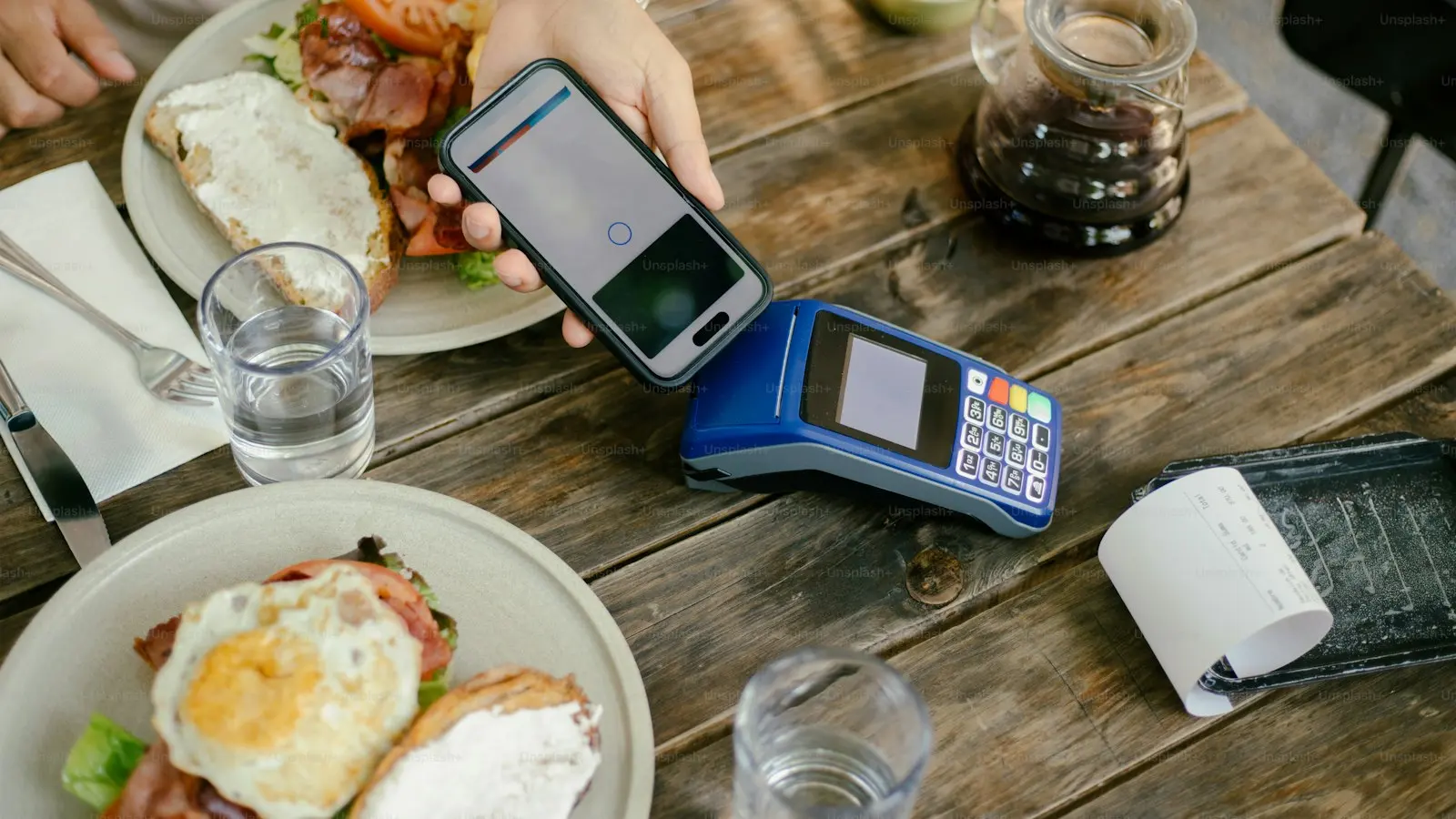
What Is Scan and Pay? Settling a Restaurant Bill From the Table
Scan and pay lets a guest scan the table code, land straight on the printed bill and settle it. Here is how it works and when it does not.
 Guides & Setup
Cover Charge for Pubs and Clubs: Pricing, Redemption, Reporting
How to price a cover charge by day, collect it at the door, redeem it against the bill, and read the redeemed versus non-redeemed split the next morning.
 Guides & Setup
Setting Delivery Charges and a Delivery Radius That Pays
Fixed or per-kilometre, how far to deliver, free delivery thresholds, packaging, and the two things Muncho deliberately does not have.