Home / Blog / Guides & Setup
Guides & SetupDine-in Settings Explained: Every Switch, and What It Changes
Table ordering, Initial login, Guest login, Order flow, Commission and Settlement: what each option on the Dine-in Settings page does to service.
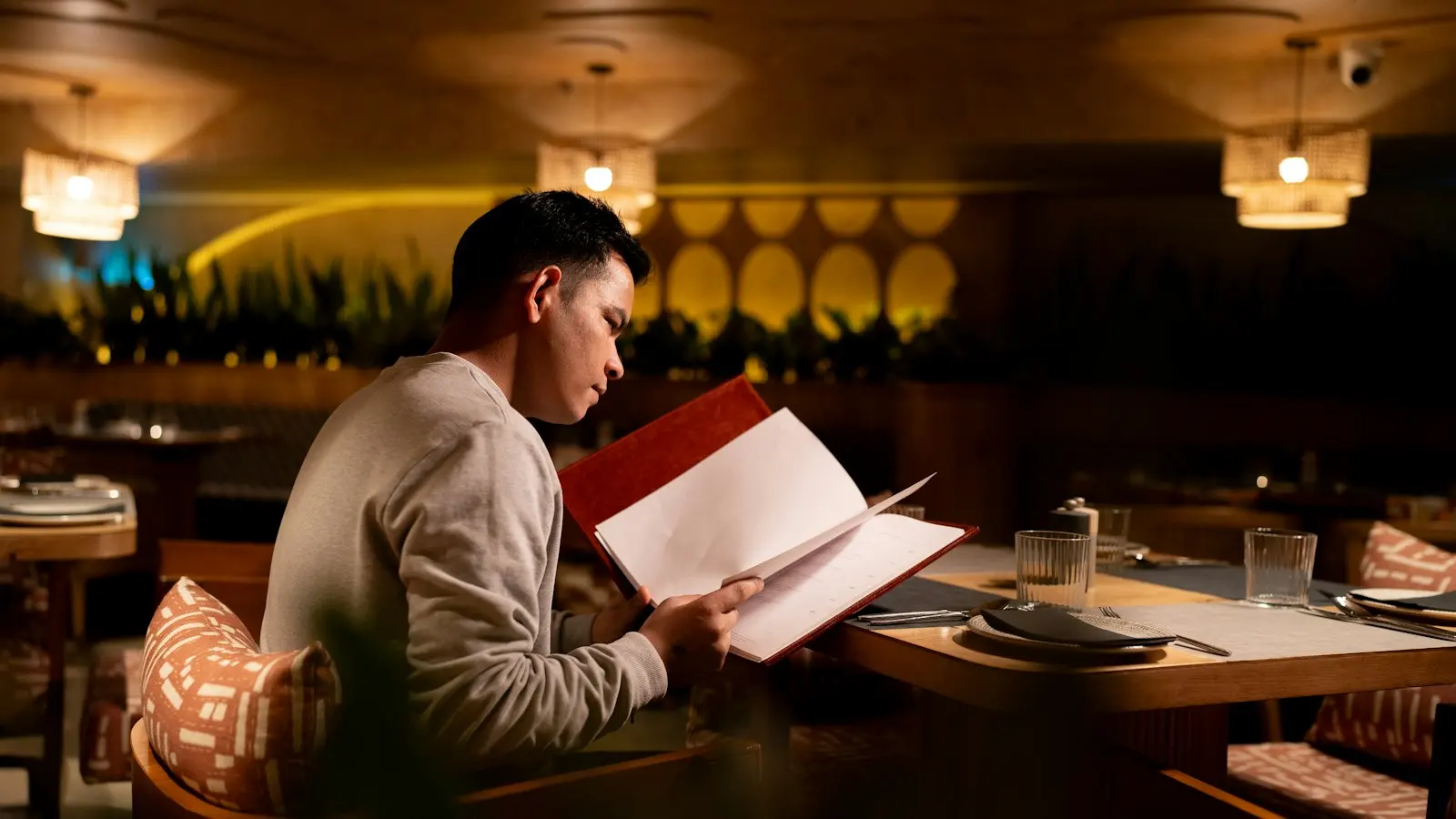
Dine-in Settings is one page in the Muncho dashboard, at Dine in then Settings, and it holds six decisions that between them define how service works at your tables: whether guests can order at all, what they see when they scan, what they must give you before ordering, whether orders wait for staff, who pays the fee, and who closes the bill in your POS.
Here is every option, in the words the page uses, and what each one does to a real Friday night.
Table ordering: the master switch
The first card is Table ordering, and it is the one that decides whether this is an ordering system or a menu.
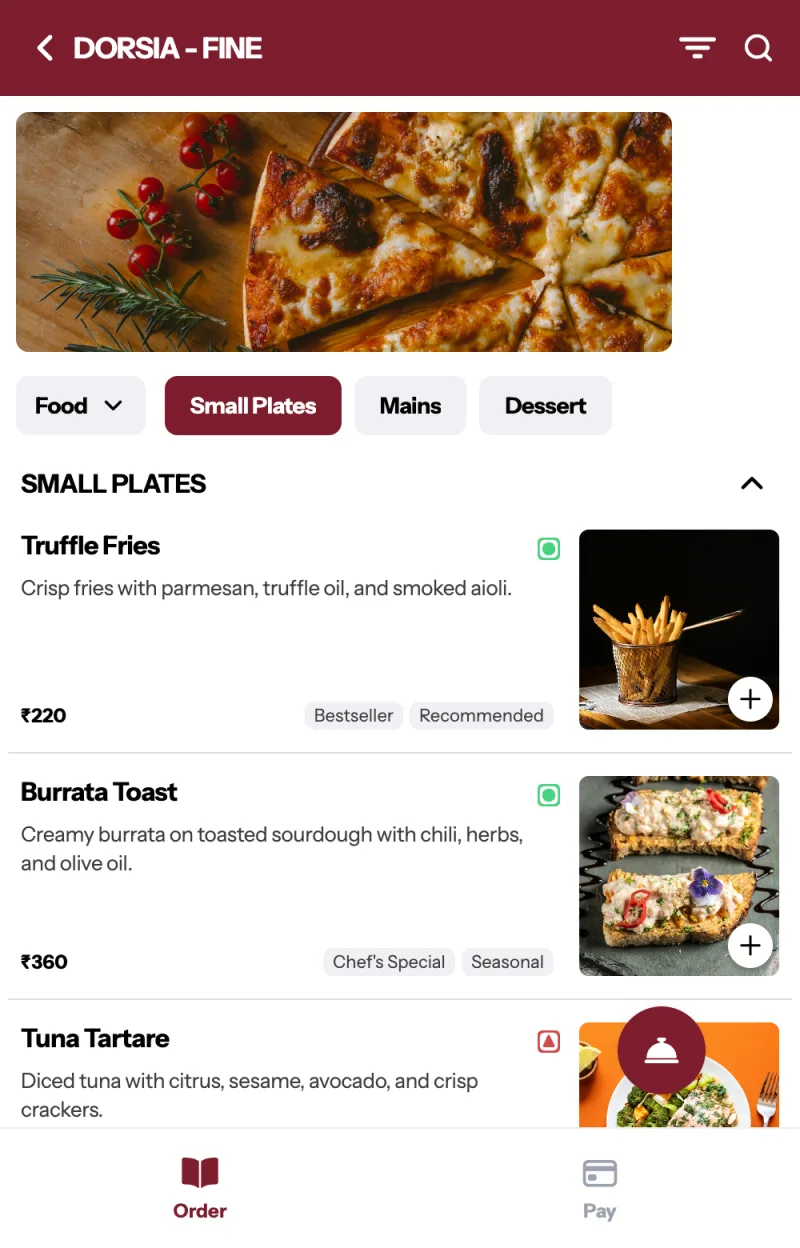
- On: "Guests order from their phone when they scan the QR code on a table."
- Off: "Guests can read the menu, but only your staff can place the order."
Under both, the page adds: "Either way, guests can pay their bill from their phone."
That last line is the important one. Turning table ordering off does not turn the QR code off. It gives you a digital menu plus phone payment, which is the view and pay flow and a perfectly good place to start. Both sit inside the same dine-in product, so moving between them later changes a setting rather than a system.
Three nested cards appear only when table ordering is on.
Initial login: what a guest meets when they scan
"Whether guests are asked to sign in when they scan, before they see the menu." Three options, each with a one-line explanation on screen.
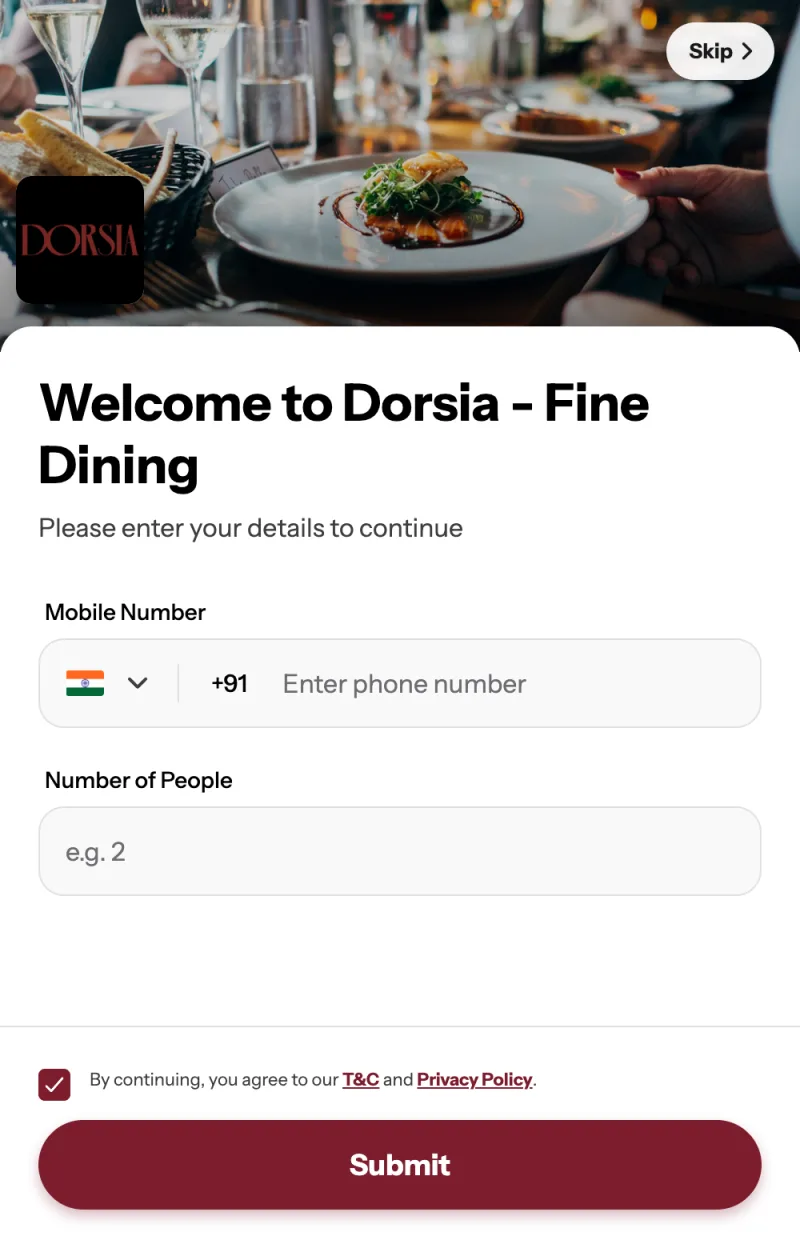
- None. The guest sees the menu immediately. Lowest friction, no identity until they order.
- Optional. The guest is offered a sign-in and can skip it. The default.
- Mandatory. The guest signs in before the menu appears.
Mandatory gets you a phone number from everyone who scans, including the person who only wanted to check whether you do a vegetarian biryani. That is a real trade: more records, fewer scans that turn into orders. If you are weighing it up, create an account and try each option on your own phone before your staff ever see it.
The setting is not offered on a View & Pay outlet, because there is nothing to sign in for until there is a bill.
Guest login: what they must give you before ordering
"What a guest has to give you before they can order." Four options.
- Customer details. A name and phone typed in, no verification.
- Phone number with OTP. Verified, and the strongest customer record you can get.
- Table PIN. A four-digit PIN tied to the table, so only someone sitting there can order.
- Table PIN and OTP. Both.
If your section has no tables yet, the card says so: "This section has no tables yet, so there is nothing to print a PIN on."
How to choose. If your worry is fake orders and people ordering to a table they are not sitting at, use a table PIN. If your worry is knowing who your regulars are, use OTP. If you run a busy pub where nobody will type anything, use customer details and accept that the data will be patchy.
A detail about PINs worth knowing: they are four digits, assigned to every table nightly at 5am, and regenerated when a table turns occupied. The dashboard never displays a table PIN. At a PetPooja venue the storefront fills it in for the guest, so most guests never see a prompt at all.
Order flow: who accepts the order
"What happens the moment a guest sends an order." Two options.
- Straight to the kitchen. "The order is accepted the moment the guest sends it."
- Your staff accept it first. "The order goes to the waiter app (waiter.muncho.in) and waits there until a staff member accepts it."
This is the setting with the largest effect on your floor, and the one most worth changing over time rather than getting right on day one.
Start with staff acceptance. It gives your team a safety net while everyone learns the rhythm, and it catches the guest who orders six starters by accident. The cost is that someone has to be watching the app, and on a busy night an unaccepted order is a guest wondering where their food is.
Move to straight to the kitchen once the floor trusts it. You get the speed that made you install QR ordering in the first place: guest taps, KOT prints, nobody in between.
Commission: who pays the fee
"Choose who pays the fee on dine-in orders", with two options: Customer and You.
Dine-in carries 2.1 per cent, and the code default is that the merchant bears it. If you switch it to Customer, the fee appears on top of the bill amount and guests will see it. If you keep it on You, it comes out of what you receive.
Either is defensible. What is not defensible is switching it without telling your staff, because the person who gets asked about a new line on the bill is the one carrying the plates. The full rate table is in Razorpay for restaurants, and the headline rates are on the pricing page.
Settlement: who closes the bill in your POS
This card only matters at a POS-integrated venue, and it is admin-only.
- Manual. "Guests pay on Muncho, and your staff settle the bill in your POS."
- Automatic. "Guests pay on Muncho, and Muncho settles the bill in your POS for you."
Two notes printed on the card itself: "This is one setting for the whole restaurant, whichever section is selected", and "On Automatic, most bills with a discount are still left for your staff to settle."
Read the second one twice before you promise your team that discounted bills will close themselves. Why that is the case is covered in the PetPooja integration.
Saving, and what applies where
There is one Save for the page, plus an apply-to-all-sections checkbox which is on by default for dine-in. So by default, a change you make in one section lands everywhere.
Settlement is the exception and does not respect the checkbox: it is restaurant-wide by design.
What is not on this page
Two things people go looking for.
There is no call waiter toggle. Call Waiter is a guest storefront feature with no switch. The guest taps Waiter and gets a sheet headed "How can we help?" with chips for Assistance, Water, Cutlery and Clean, plus a free-text box. Requests land in the waiter app. If you do not want it, that is a conversation with the Muncho team, not a setting.
There is no song requests toggle. Guests at a dine-in table see a "PLAYING NOW" card with a Request a Song button if your venue runs music. Turning that off is a database change today. See guest song requests and the DJ console.
A sensible starting configuration
For a first rollout at a casual dining room or a pub:
- Table ordering: on, in one section only.
- Initial login: Optional.
- Guest login: Phone number with OTP, if you want the customer record; Table PIN if you are worried about stray orders.
- Order flow: Your staff accept it first.
- Commission: whichever you have decided, communicated to the floor.
- Settlement: Manual, until you have watched a week of bills close.
Run that for a fortnight, then move Order flow to straight to the kitchen and turn the remaining sections on. The rest of the rollout, including printing, is in table QR codes, and the wider picture is in QR code ordering for restaurants in India.
Questions restaurants ask
What happens if I turn Table ordering off?
Guests can read the menu but only your staff can place the order. The page says so in as many words. Either way, guests can still pay their bill from their phone.
What is the difference between Initial login and Guest login?
Initial login is whether guests are asked to sign in when they scan, before they see the menu. Guest login is what a guest has to give you before they can order. One gates the menu, the other gates the order button.
Should orders go straight to the kitchen?
Start with staff acceptance. On 'Your staff accept it first' the order waits in the waiter app until someone accepts it. Move to 'Straight to the kitchen' once your floor trusts the flow.
Is there a switch for the call waiter button?
No. Call Waiter is on the guest storefront and has no dashboard toggle. Requests appear in the waiter app.
Does a change apply to all my sections?
There is one Save for the page plus an apply-to-all-sections checkbox, which is on by default for dine-in. Settlement is different: it is one setting for the whole restaurant regardless of which section is selected.
Where do I turn song requests off?
Nowhere on this page, and nowhere else in the dashboard today. Turning guest song requests off is a database change, so ask the Muncho team.
Run this on your own menu
QR ordering at the table, your own delivery and pickup storefront, and payments straight to your account. India plans: Plus Rs 11,999, Pro Rs 23,999, Max Rs 49,999 a year per outlet, plus GST. Usage comes from your wallet.
Related reading
 Guides & Setup
What Is Scan and Pay? Settling a Restaurant Bill From the Table
Scan and pay lets a guest scan the table code, land straight on the printed bill and settle it. Here is how it works and when it does not.
 Guides & Setup
Cover Charge for Pubs and Clubs: Pricing, Redemption, Reporting
How to price a cover charge by day, collect it at the door, redeem it against the bill, and read the redeemed versus non-redeemed split the next morning.
 Guides & Setup
Setting Delivery Charges and a Delivery Radius That Pays
Fixed or per-kilometre, how far to deliver, free delivery thresholds, packaging, and the two things Muncho deliberately does not have.