Home / Blog / Guides & Setup
Guides & SetupCover Charge for Pubs and Clubs: Pricing, Redemption, Reporting
How to price a cover charge by day, collect it at the door, redeem it against the bill, and read the redeemed versus non-redeemed split the next morning.
A cover charge in Muncho is money collected at the door that becomes a coupon with a rupee balance. Staff create the charge, take the payment, and the guest gets a coupon code by WhatsApp. Later, staff deduct against that balance on the bill. What has been deducted is redeemed, what is left is non-redeemed, and that split is the number your Monday morning actually turns on.
This is a genuinely uncontested corner of Indian restaurant technology, so most of what is written about it is vague. Here is the mechanical version.
What is a cover charge, and why split it?
A cover charge is an entry payment. Pubs, clubs and event venues use it to control who comes in, to cover a DJ or a band, and on a busy Saturday to price the door rather than the drink.
The split that matters is whether the money can be spent inside.
- Non-redeemable. The guest pays to enter and the money is yours. Simple, but it puts a wall in front of the door on a slow night.
- Redeemable. The guest pays at the door and gets that value back as credit against food and drink. It feels like a deposit rather than a charge, and it reliably raises the number of people who cross the threshold.
In Muncho this is not two settings. Every paid cover charge becomes a coupon carrying a balance, and staff deduct against it. Whether a particular charge behaves as redeemable is a matter of what your door and your bar staff do with the code, and the reporting reflects reality rather than intent.
Why does the redeemed split matter at the till?
Because redeemed money and non-redeemed money are two different things to your business.
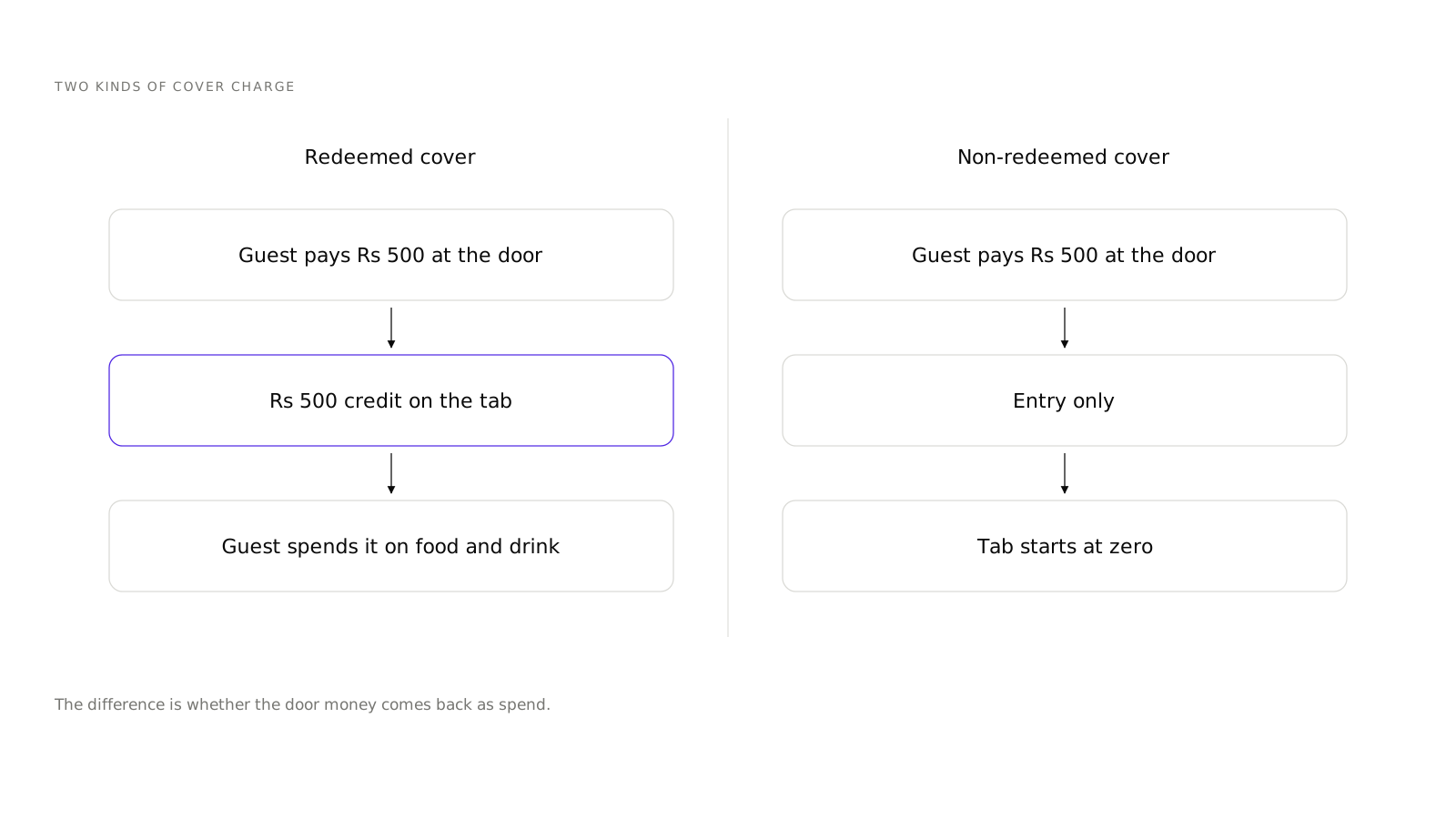
Redeemed cover charge is revenue that has already turned into food and drink. Non-redeemed is a balance you are holding: the guest paid, did not spend it, and either forgot or will come back. On a big night the non-redeemed balance can be a meaningful number, and it is the one that tells you whether your door price is set above what guests actually spend.
If the non-redeemed balance is consistently large, your cover is priced above your average guest spend, which is fine if the door is the product and awkward if you sold it as credit.
How do you price it by day and by event?
The configuration lives on the Cover Charge Options card, reached through Configure Charges on the Cover Charges list. It is admin-only.
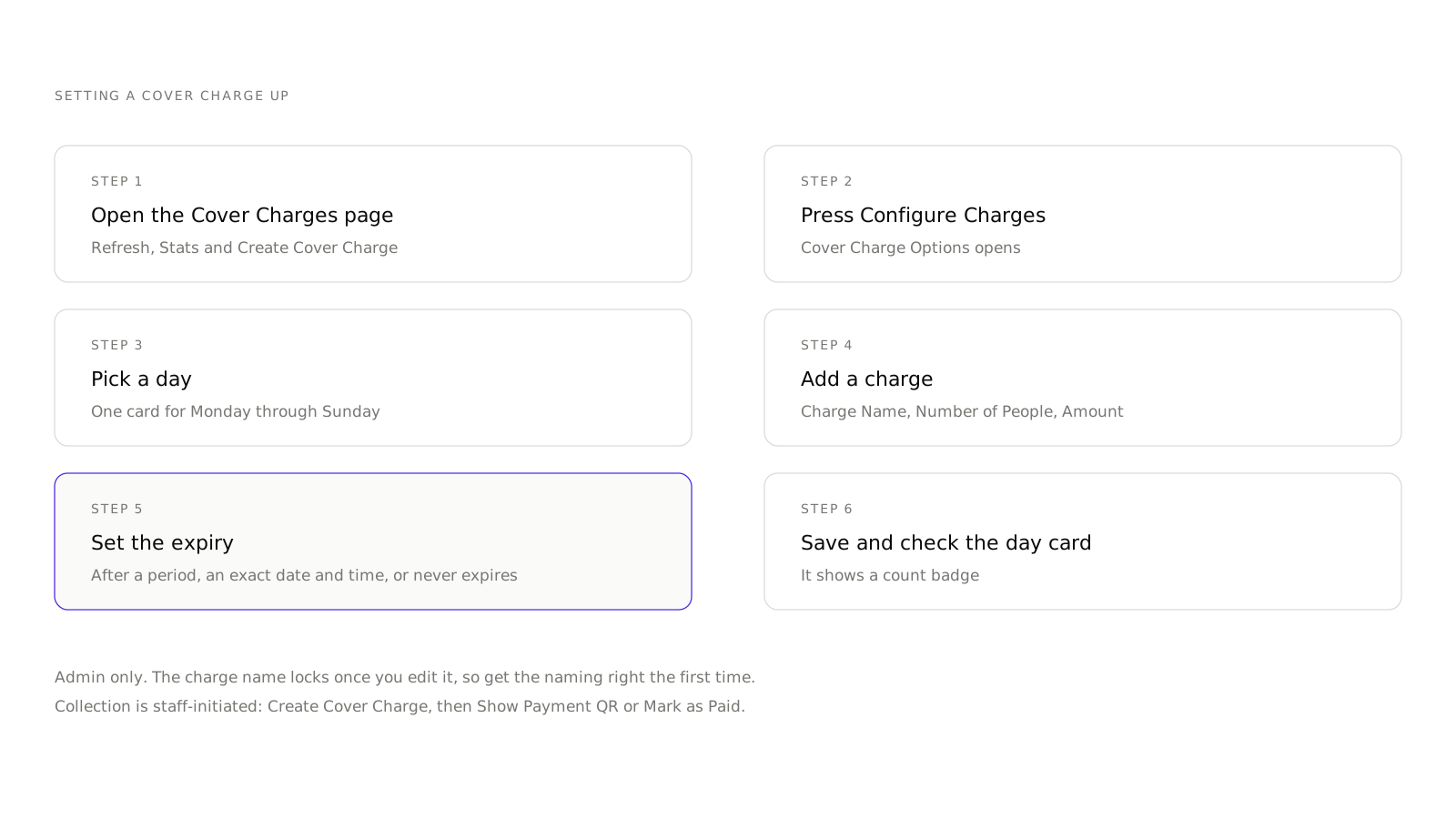
- Open the Cover Charges page. Header Cover Charges, with Refresh, Stats and Create Cover Charge buttons.
- Press Configure Charges to reach the options. The card is headed Cover Charge Options, with the line "Set the cover charge options for each day of the week".
- Pick a day. There is one card for Monday through Sunday, each showing a count badge and rows with Pax, Amount and Expiry.
- Add a charge. The dialog is Add Cover Charge, with Charge Name, Number of People (Pax) and Amount. The placeholder tells you the naming convention: "e.g., Stag Entry, Couple Entry".
- Set the expiry. The prompt is "Choose when guests can no longer redeem this coupon", with three options: After a period, Exact date and time, or Never expires. A period is expressed in Hours, Days or Weeks.
- Save, and check the day card shows the right number of charges.
Two practical notes. The charge name locks once you edit it, so get the naming right the first time. And expiry is the lever people forget: a Never expires coupon is a liability sitting on your books, while an expiry of a few hours turns the cover into something closer to a door price.
For a ticketed night, use Events instead. Create Event asks for Event Name, Venue, Event Date, Event Time, an Event Banner at 16:9 and a Description, and each ticket type carries a Ticket Status, Ticket Name, Purchase Period, Price, an optional Redemption Value described as a voucher value customers can redeem at your venue, Stock, and optional Rules and Terms. Guests buy on the storefront event page, pay by Razorpay, and get the ticket by WhatsApp. Only Terms and Rules and the on-sale status stay editable after saving, and archiving an event is permanent.
How do you collect it at the door?
Cover charge is staff-initiated, so the flow starts with a person, not a link.
- Press Create Cover Charge on the list.
- Enter the guest's details and the charge that applies.
- Take the money. For UPI, press Show Payment QR and let the guest scan it. For cash, card or a split, press Mark as Paid with the amount shown, after you have collected. The hint on screen says exactly that.
- The guest gets a coupon code by WhatsApp, plus a coupon page.
The QR in the dashboard modal opens the guest's coupon page. The payment QR collects money. Neither one is a redemption scanner, and it is worth saying that to your door staff before the first Friday, because everyone assumes there is a scan. If you would rather walk these screens than picture them, you can open an account and follow along.
There is no self-serve path where a guest pays a cover charge on their own phone before arriving, and there is no copy-a-link button on the cover charge modal. The copy button copies the coupon code.
How does redemption work in practice?
By code, and by hand.
Your bar or floor staff take the guest's coupon code, look it up, and deduct an amount against the bill. Each deduction is a transaction against the balance, so a guest with a 1,000 rupee cover can spend it across three rounds.
What that means for your floor: the code has to survive the night. It is on the guest's phone in a WhatsApp message, which is the most reliable place it could be. Staff should be told to ask for the code at the first order, not at the end, because a guest who has forgotten they have credit spends it nowhere.
Search on the Cover Charges list works on name, phone or coupon code, which is how you find a guest who has lost the message.
What should the report tell you the next morning?
Open Cover Charge Stats. The tiles are Total Revenue, Groups, Total Pax, Conversion Rate and Refunded. Below them are Payment Modes and Cover Charge Types cards, a Redeemed card described as successfully redeemed cover charges, and an unsettled card for pending redemptions. There is an Export Excel button.
Four questions to ask of it:
- How much came in, and in what? Payment Modes tells you whether your door is running on UPI or on cash, which is an operational fact more than a financial one.
- What proportion was redeemed? A high redemption rate means your cover is working as credit. A low one means it is working as a door price. Neither is wrong, but your marketing should say the true one.
- Which charge types sold? If Stag Entry is ninety per cent of the night, your pricing is doing something you did not intend.
- What was refunded? Refunds are full amount only, and they show as a Refunded status, so a rising number here is a door process problem.
For everything else about the night, the Payments page has an Entry Payments tab alongside Bill Payments.
What to know before your first night
- Configure charges before the door opens, not at 10pm with a queue outside.
- Brief staff on the code, because redemption is a lookup and not a scan.
- Set an expiry deliberately. Never expires is a real choice with a real cost.
- Decide who bears the fee. Cover charge carries a 2.1 per cent commission, which is the rate on the pricing page, and it defaults to the customer bearing it. The Commission card is where you change it.
- Do not promise a share link. There is not one for cover charge or for events.
Cover charge sits alongside the rest of the dine-in setup. If guests are also ordering from the table that night, read Dine-in Settings, and if there is a DJ, guest song requests is the other thing your floor will get asked about.
Questions restaurants ask
What is a redeemable cover charge?
A cover charge that the guest can spend inside the venue. In Muncho every paid cover charge becomes a coupon carrying a rupee balance. Redeemed is the part already spent onto bills, non-redeemed is the balance still sitting on the coupon. It is not a setting you switch on, it is derived from what staff deduct.
Can guests pay the cover charge themselves before arriving?
Not today. Cover charge is staff-initiated: someone at the door presses Create Cover Charge, then either shows the payment QR for UPI or marks it paid for cash, card or a split.
How does a guest redeem their cover charge?
By coupon code. Staff look the code up and deduct an amount against the bill. There is no scanner and no PIN. The guest receives the code by WhatsApp along with a coupon page.
Can I set different cover charges for Friday and Saturday?
Yes. Cover Charge Options has one card per day of the week, and each day can hold several charges with their own Pax, Amount and Expiry.
Can I refund a cover charge?
Yes, and it is the only refund in the dashboard. It is full amount only: Refund Payment, then a dialog asking for the Refund Method and a reason. There is no partial refund and no refund button for ordinary order or bill payments.
Can I send a guest a link to pay the cover charge?
Not from the cover charge screen. The modal shows a QR and the copy button copies the coupon code, not a link. The only place the dashboard hands you a copyable public link is the Online Orders Links page.
Run this on your own menu
QR ordering at the table, your own delivery and pickup storefront, and payments straight to your account. India plans: Plus Rs 11,999, Pro Rs 23,999, Max Rs 49,999 a year per outlet, plus GST. Usage comes from your wallet.
Related reading
 Guides & Setup
What Is Scan and Pay? Settling a Restaurant Bill From the Table
Scan and pay lets a guest scan the table code, land straight on the printed bill and settle it. Here is how it works and when it does not.
 Guides & Setup
Setting Delivery Charges and a Delivery Radius That Pays
Fixed or per-kilometre, how far to deliver, free delivery thresholds, packaging, and the two things Muncho deliberately does not have.
 Guides & Setup
Pickup and Takeaway Ordering: Setting Up a Storefront
Takeaway is pickup, one channel. How the pickup storefront works, what to set on the Pickup Settings page, and where to put the link.