Home / Blog / Restaurant Operations
Restaurant OperationsWhich Numbers a Restaurant Owner Should Read Every Monday
A fifteen minute Monday routine across Analytics, Orders, Payments and Customers, and the limits of each screen before you trust it.

There is no Reports section in the Muncho dashboard, so a Monday routine means four screens rather than one: Analytics for the shape of the week, Orders for what went wrong, Payments for the money that actually moved, and Customers for who is coming back. Fifteen minutes, in that order, and you will know more than most owners do on a Wednesday.
Here is the routine, and just as importantly, what each screen cannot tell you.
Start with Analytics, for the shape of the week
Set the period to 7 Days. The filter is a dropdown with 1 Day, 7 Days, 30 Days and 60 Days, and there is no custom range, so compare like with like by staying on the same setting each week.
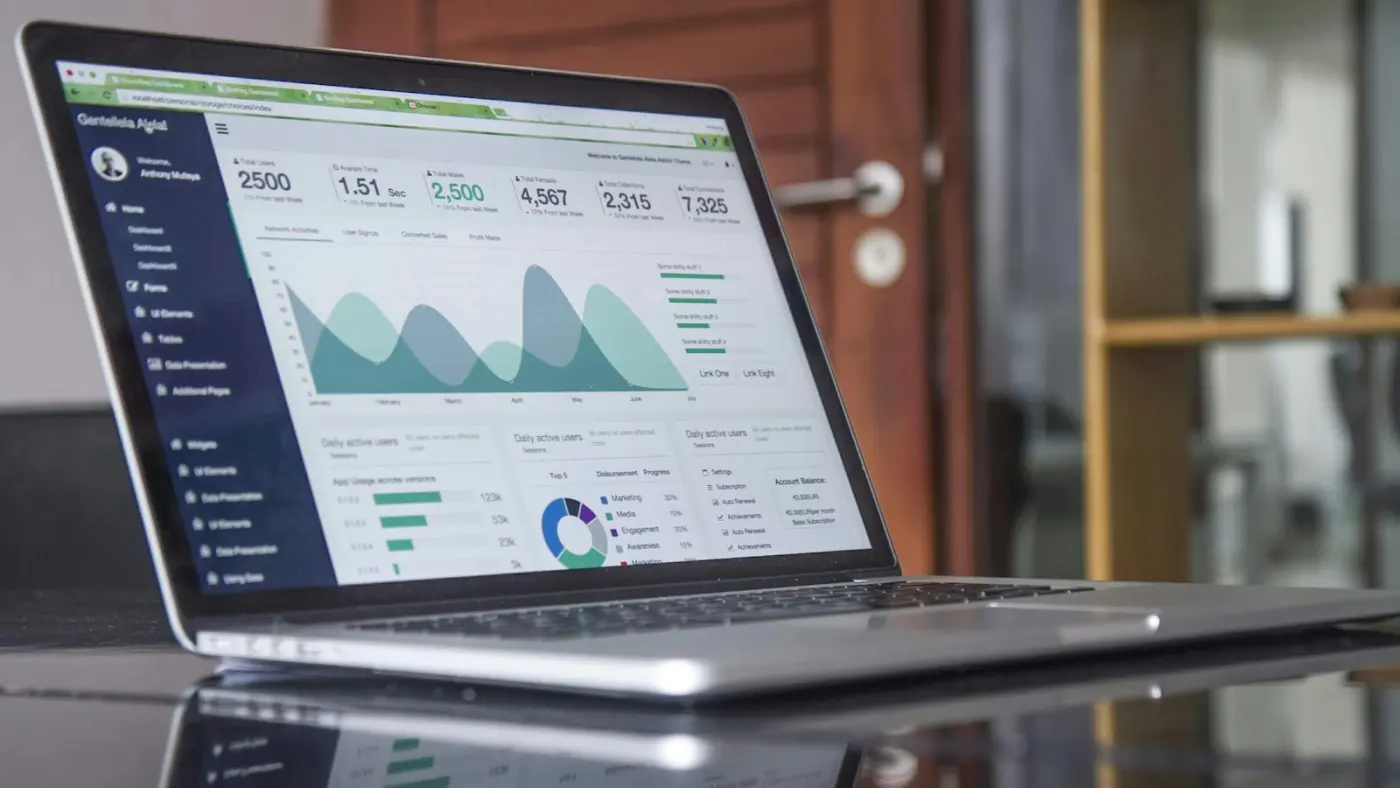
Four cards at the top: Total Orders, Total Revenue, Average Order Value, Unique Customers.
Read them as a set, not individually. Orders up and average order value down usually means a discount did its job and nothing else did. Revenue flat with unique customers up means you traded regulars for strangers, which is fine for a month and bad for a year.
Below the cards: Top Dishes by Order Count, Top Dishes by Total Amount, Bottom Dishes by Order Count, Bottom Dishes by Total Amount, New vs Repeat Customers, Top Customers by Sales, Top Customers by Items and a Top 50 Customers list.
The two bottom-dish lists are the ones nobody opens and everybody should. A dish at the bottom of both is occupying menu space, prep time and probably stock. Either fix its position, fix its photo, or take it off in the POS.
There is no export on this page, so if you want a record, take a screenshot.
Then Orders, for what went wrong
Tabs: Upcoming, Pending, Accepted, Completed, Rejected. At PetPooja venues the Pending tab is hidden, because orders default to Accepted.
Go straight to Rejected. Every rejection is either a kitchen that could not cope, an item that should have been switched off, or a guest who ordered something you do not really sell. All three are fixable and all three cost you the same guest twice.
Then check Accepted for anything still sitting there from last week. An order that never moved to Ready is a bill that never closed and a guest who never got a message.
There is no export here either. The page has a New Order action and a prep-sheet dialog by date.
Then Payments, for the money that moved
This is the only screen with a real export, and it is the one to build a habit around. If you are not live yet, create an account and find the same four screens empty, which is a cheap way to learn where they are.
Two tabs, Bill Payments and Entry Payments. Bill Payments has type pills for All, Dine in, Delivery, Cover Charge, Ticketing and Payment Links, a date range, summary figures and a search box.
The CSV carries Payment ID, Type, Customer, Phone, Table or Pax, Receipt, Restaurant Amount, Method, Status and Paid Time.
Two things to do with it every week:
- Reconcile against your POS. If you run manual settlement, a bill can be paid in Muncho and still open in your POS. That gap is normal and it still has to be closed by somebody. See the PetPooja integration.
- Look at the method mix. A shift from UPI towards cards, or the reverse, changes what your payment costs look like and tells you something about who is coming in. The platform side of that is fixed and published on the pricing page; the rest moves with the mix.
One caveat that matters: search and export run over the records already loaded on the page, so a long date range can silently drop older rows from the export. Export a week at a time.
Then Customers, for who came back
Overview has a 7, 30, 90 day or 1 year selector and a CSV export. The cards are Total Customers, New vs Repeat, Avg Customer Value and Total Revenue, with panels for New vs Returning Customers, Peak Hours, Busiest Days, Most Popular Items, Customer Segments, By Order Type and Top Customers.
Peak Hours and Busiest Days are the two that change decisions. They are a rota input, not a marketing input. If your busiest hour is consistently understaffed, nothing else on this page matters.
New vs Repeat is the number to watch over months rather than weeks. A restaurant with a high new-customer share and a low repeat share is buying traffic it is not keeping.
All Customers is the list: Table, Type as Dine In, Delivery or Takeaway, Date and Time, Customer Names, Phone Numbers, Payment, Total and Tip, with a date filter, a search box and an Excel export capped at 10,000 rows.
Read that list knowing two limits. It is one row per order, not one row per customer, so the same person appears repeatedly and any counting you do in a spreadsheet has to deduplicate on the phone number. And it is built from orders rather than from bills, so guests who only ever paid at the till are not in it at all.
What none of these screens will tell you
Be clear about the edges, because a number you misread is worse than a number you do not have.
- Total restaurant revenue. Muncho sees the digital slice. Your POS holds the rest, and at a PetPooja venue a till-paid bill sends no signal back. The slice Muncho sees grows as more guests pay from the table, which is what dine-in is for.
- Whether a message reached a guest. Delivery receipts are not live, so a send is not a confirmed receipt.
- Anything on a schedule. There is no PDF report and no emailed or scheduled report anywhere in production. Monday is a habit you keep, not a mail you receive.
- A deduplicated customer record or tags. Neither exists. Segments happen in your spreadsheet.
- Cover charge detail, which lives on its own Stats page with tiles for Total Revenue, Groups, Total Pax, Conversion Rate and Refunded, plus an Excel export. Covered in cover charge for pubs and clubs.
The fifteen minute version
- Analytics, 7 Days. Four cards, then the two bottom-dish lists. Two minutes.
- Orders, Rejected tab. Read every one. Three minutes.
- Payments, last week, export the CSV. Reconcile against the POS. Five minutes.
- Customers, Overview. Peak Hours, Busiest Days, New vs Repeat. Three minutes.
- Reviews. Read the sub-scores, not the average. Two minutes. See Google reviews from a QR order.
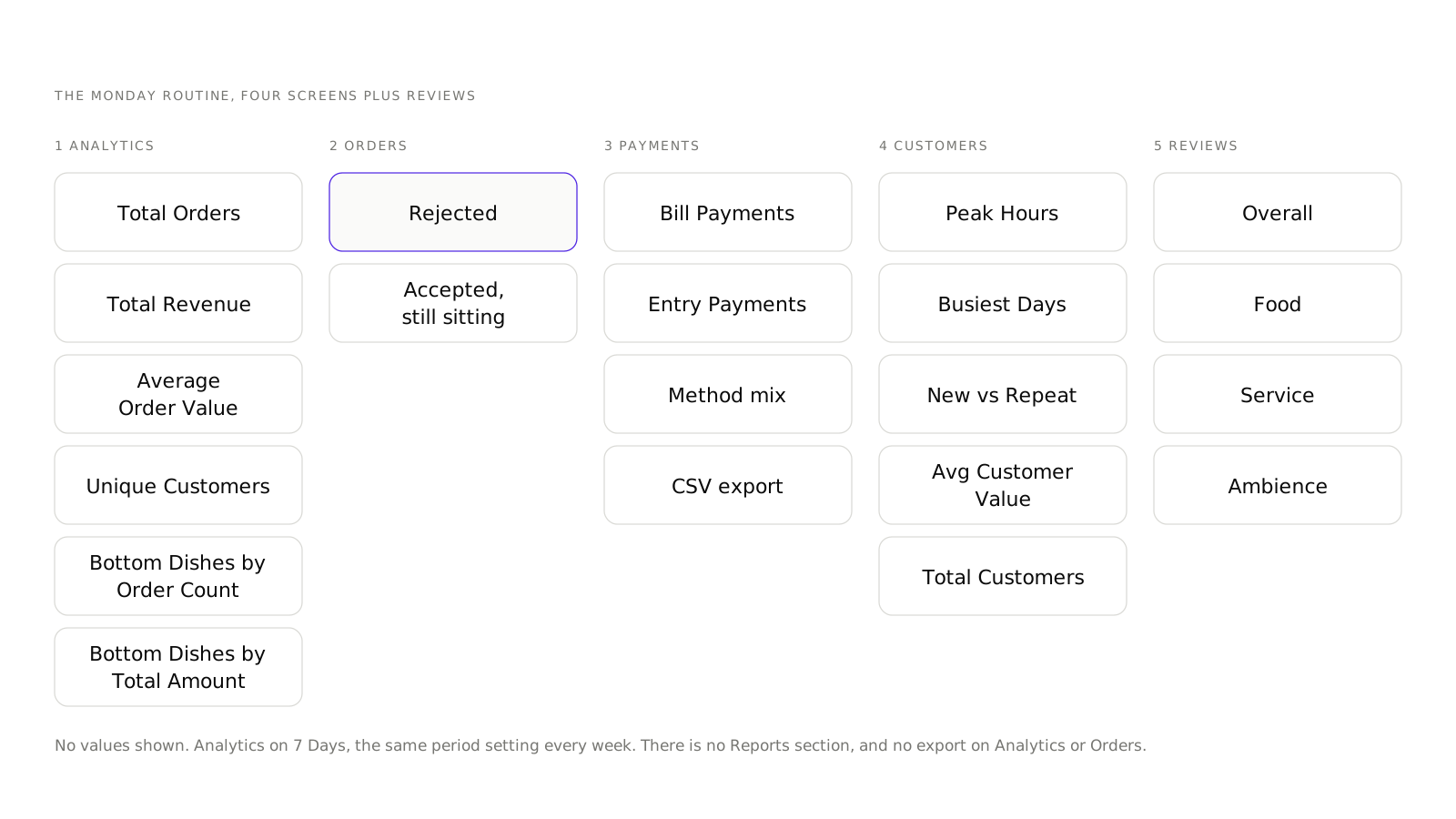
Do it at the same time every week with the same period settings. The value is not in any single reading; it is in the fourth one, when a line that moved is obviously a line that moved.
Questions restaurants ask
Is there a Reports section in Muncho?
No. Reporting lives across three pages: Analytics, Orders and Payments, plus the Customers section. There is no Reports tab, no PDF report, and no scheduled or emailed report.
Can I pick a custom date range on Analytics?
No. The Analytics filter is a period dropdown with 1 Day, 7 Days, 30 Days and 60 Days. Custom ranges exist on the Payments page, not on Analytics.
What can I export?
Payments to CSV, All Customers to Excel, the Customers Overview top customers and a chosen segment to CSV, and Cover Charge Stats to Excel. Analytics and Orders have no export.
Why does my Muncho revenue not match my POS?
Because Muncho only sees what came through Muncho. Bills paid at your till do not report back from PetPooja, so the POS is the source of truth for total revenue and Muncho tells you about the digital slice.
Why are some of my customers missing from the list?
The customer list is built from orders and does not read the bill, so guests who only ever paid at the till are not in it. It is also one row per order rather than one row per customer.
Run this on your own menu
QR ordering at the table, your own delivery and pickup storefront, and payments straight to your account. India plans: Plus Rs 11,999, Pro Rs 23,999, Max Rs 49,999 a year per outlet, plus GST. Usage comes from your wallet.
Related reading
 Restaurant Operations
An AI Phone Agent for Your Restaurant: What It Can and Cannot Do
What the AI Phone Calls section in Muncho actually does today, what it costs, who in your team should have access, and what it does not handle.
 Restaurant Operations
Getting Google Reviews From a QR Order, Without Nagging Guests
How the review prompt works after a guest pays, why only four-star ratings reach Google, and what to do with the feedback that stays in-house.
 Restaurant Operations
What WhatsApp Messages Your Guests Actually Get From Muncho
The exact list of WhatsApp messages Muncho sends a guest, why every one is a template, and the things it does not send that people assume it does.