Home / Blog / Guides & Setup
Guides & SetupMuncho and PetPooja: How the Integration Works, Item by Item
How the PetPooja link is requested, what syncs each way, who decides accept or reject, and the three things that never come back from the POS.
PetPooja and Muncho link through a request that Muncho sends to PetPooja on your behalf, not through a connect button you press yourself. Once the link is live, the menu flows from PetPooja into Muncho, orders flow from Muncho into PetPooja, item availability moves both ways, and three things never come back: dispatch statuses, cancellations, and any signal that a bill was paid at the till.
Knowing those three gaps up front is most of what makes a PetPooja rollout go smoothly.
What links to what?
PetPooja is your point of sale. It owns the menu, the prices, the taxes, the tables and the bill. Muncho is the guest-facing layer: the QR menu, the delivery and pickup storefront, the payment, the guest record.
The connection is set on the restaurant record itself, not as an app you install. Your PetPooja restaurant ID sits on that record, and it is what every message between the two systems is keyed on.
This also means PetPooja is a property of the restaurant, not of one outlet. A PetPooja venue is a PetPooja venue across all its sections.
How do you get the integration enabled?
- Open the onboarding wizard. At the menu step, choose Sync from your POS.
- Pick PetPooja. It carries the badge "Instant request". The other POS options are badged "Team assisted".
- Enter your PetPooja Restaurant ID. The helper text tells you where to find it: your PetPooja dashboard, under Settings.
- Press Send request. Muncho emails PetPooja to enable the integration and copies you on the email.
- Reply on that thread if PetPooja asks for confirmation. The wizard says so explicitly: reply all, so they can release the mapping code.
- Watch the Connect POS item on the setup checklist. It walks through four states: request sent and waiting on the email thread, Muncho checking with PetPooja, mapping code received with the final sync pending, and PetPooja connected.
There is no screen where you paste an API key. There is no Integrations page for PetPooja in the production dashboard; the only integration page there is Reelo. If somebody tells you to open Integrations and connect your POS, they are describing a screen that is not in front of you. You can check that for yourself: create an account and walk the onboarding wizard as far as the menu step before you commit to anything.
Once you are live, the sidebar shows a POS status indicator: POS Online, POS Connection Issue, POS Offline, or POS Status Unknown, each with a plain-English tooltip.
What syncs from PetPooja into Muncho?
The whole menu, and it keeps syncing.
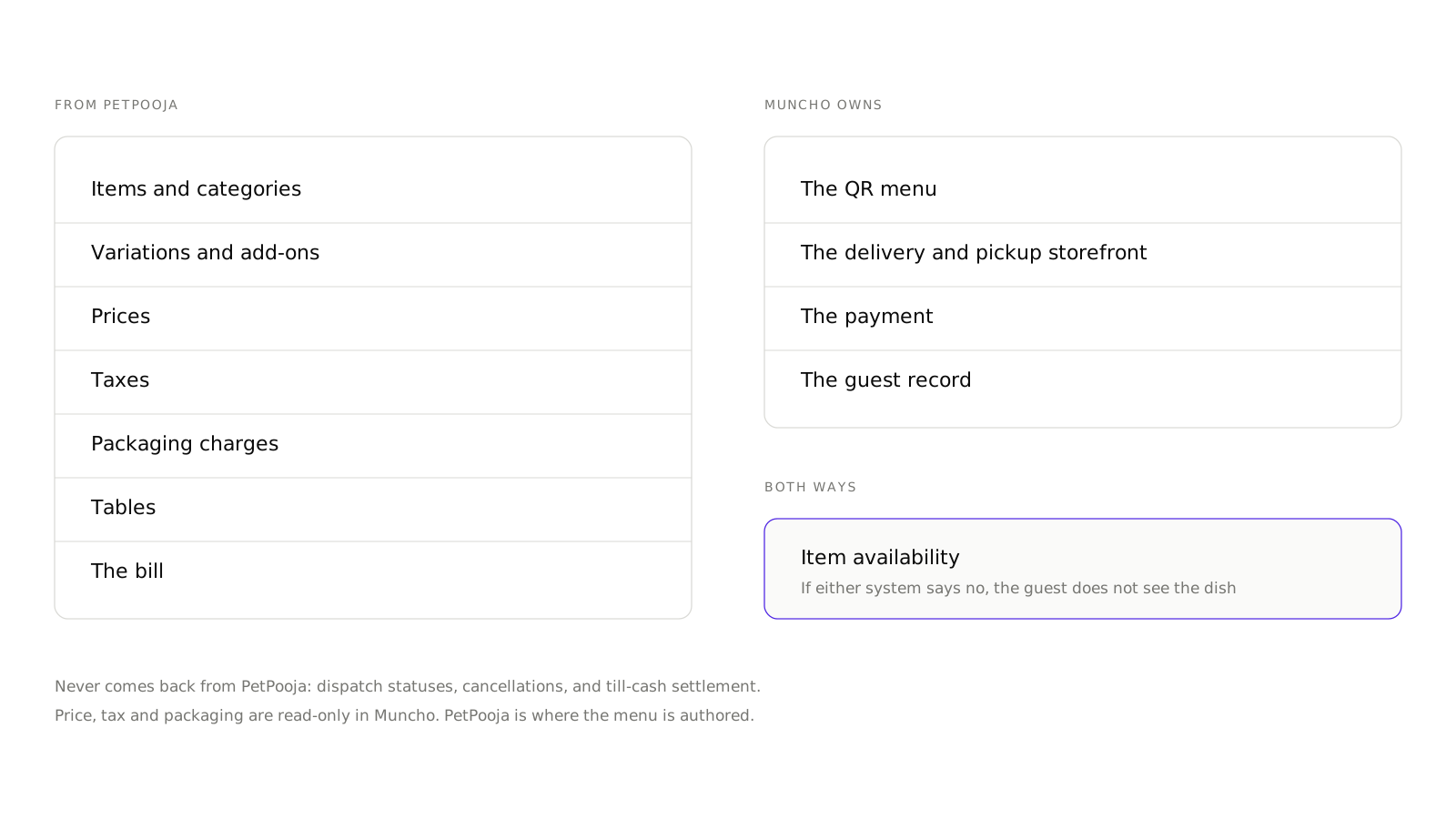
- Items and categories, with their names.
- Variations and add-ons.
- Prices. This is one-way. There is no price field anywhere in the Muncho dish editor.
- Taxes. These are mandatory. Without tax configuration an order cannot be pushed to PetPooja at all, which is why a brand new link sometimes fails on the first order.
- Packaging charges, shown read-only with a lock icon and the note that they come from your POS.
Delivery is by webhook plus a periodic resync, so an ordinary change in PetPooja reaches Muncho without anybody pressing anything. Remember that the guest-facing menu is cached for about ten minutes on top of that. If you need a change out now, press Update Menu in the dashboard header.
What syncs from Muncho into PetPooja?
Orders and payments.
- A prepaid order for now auto-pushes the moment the payment is authorised.
- A scheduled pre-order waits for a staff member to accept it before it is pushed.
- A dine-in order sends a KOT after Muncho has registered the customer and validated the table PIN.
- Bill fetch and settle go this way too.
The important consequence: at a PetPooja venue, the accept or reject decision is PetPooja's, returned to Muncho on a callback. The dashboard's Pending tab is hidden at PetPooja venues for exactly this reason, because orders default straight to Accepted.
What moves both ways?
Item availability. Turning a dish off in PetPooja turns it off for guests, and turning it off in Muncho turns it off in PetPooja.
In the dish editor this shows as a per-section in-stock switch, and rows locked by the POS are disabled with the label "Switched off in PetPooja" plus a tooltip telling you to turn it back on there. Availability is an AND of both answers: if either system says no, the guest does not see the dish. Out-of-stock dishes are removed from the guest menu entirely rather than greyed out, so there is no "sold out" badge for a guest to be disappointed by.
Automatic restock timing is PetPooja's setting. Muncho has no field for it.
What never comes back from PetPooja?
Three things. Plan around them.
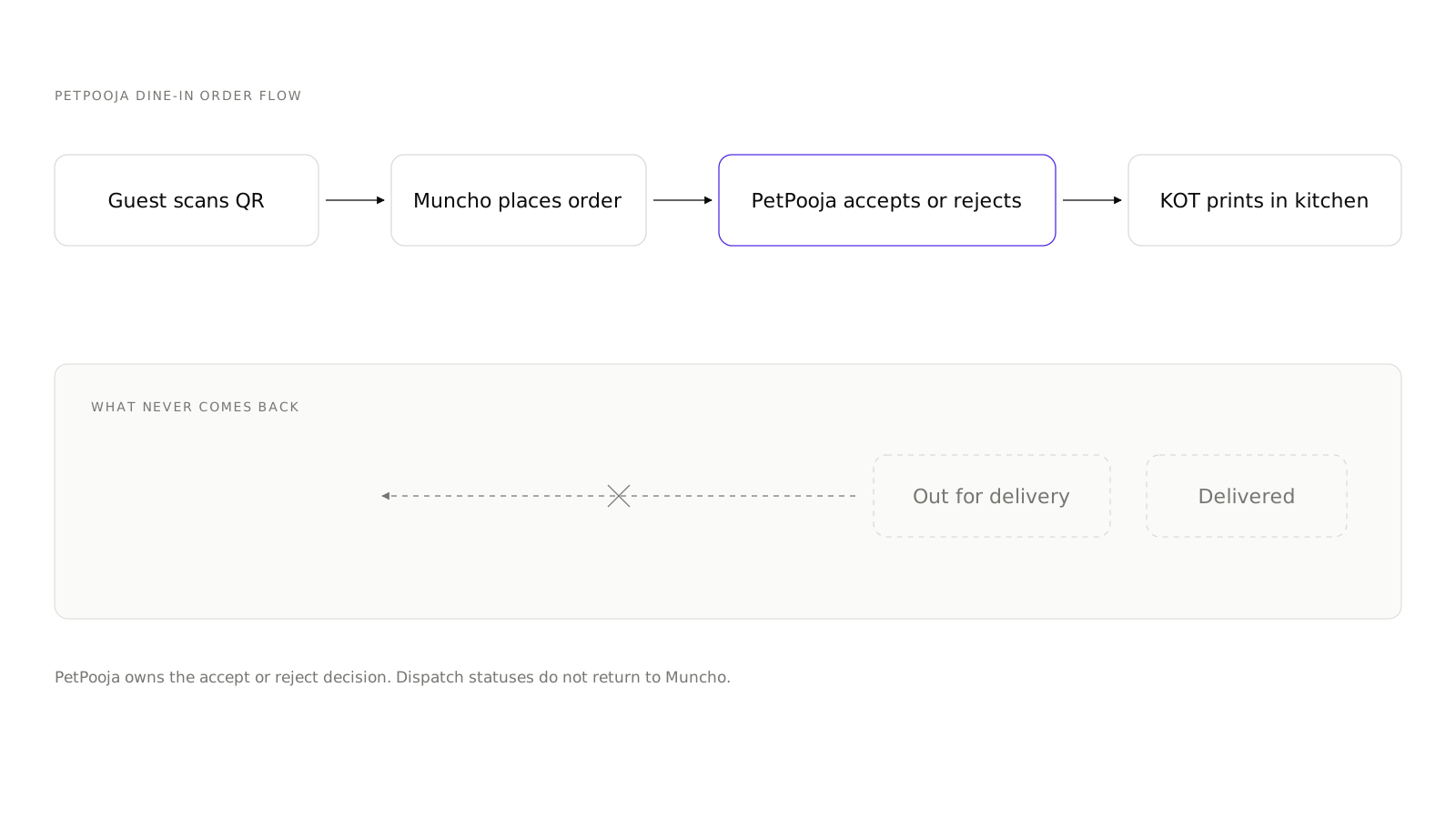
Dispatch statuses. There is no out-for-delivery or delivered coming back. Unmapped statuses are logged and dropped. On a direct delivery order those states come from Shiprocket's webhook, or a staff member marks them in the waiter app.
Cancellations. There is no outbound cancel. Once the order is pushed, cancelling in Muncho does not cancel it in PetPooja. Your staff have to do it in the POS.
Till-cash settlement. If a guest pays your cashier, PetPooja does not tell Muncho. At one venue measured over thirty days to 17 September 2026, 163 of 207 Muncho-printed bills were paid at the till and stayed open in Muncho for a median of about five hours.
That last one is why Muncho now does a fresh bill fetch at PetPooja dine-in tables. The storefront never trusts a stored bill: the guest is offered "Get the bill", and it is re-fetched from PetPooja at that moment. Prism venues are untouched by this change, because Prism bills sync from the POS about every minute.
How does settlement work?
There is a Settlement card in Dine-in Settings with two options, and it is admin-only.
- Manual. Guests pay on Muncho, and your staff settle the bill in your POS.
- Automatic. Guests pay on Muncho, and Muncho settles the bill in your POS for you.
Two things the card says in its own words, both worth reading twice. It is one setting for the whole restaurant, whichever section is selected. And on Automatic, most bills with a discount are still left for your staff to settle.
So "open" and "unpaid" are not the same thing at a PetPooja venue. A bill can be paid and still open.
What should you check on day one?
- The menu. Open the Menu page, pick each section, and confirm categories, dishes, variations and prices look like PetPooja. Anything missing is a mapping question for the sync, not something to fix by hand.
- Taxes. If they did not come across, orders will not push.
- Tables. Open QR Codes. If you see "No Tables Found", the tables have not synced yet, and nothing in table QR setup can start until they have.
- One real order. Place a dine-in order from a phone at a real table, watch the KOT print, and settle it. Then do the same for a delivery order.
- The settlement behaviour. Pay a bill through Muncho and look at what PetPooja shows. That tells you, for your venue, exactly what your staff have to do at the end of a meal.
What goes wrong most often?
- Somebody edits the menu in Muncho expecting it to reach PetPooja. It does not, apart from availability. PetPooja is where the menu is authored.
- A price looks wrong on the guest menu. It is right in PetPooja and the cache has not turned over. Press Update Menu.
- A guest pays online and the POS still shows the table occupied. Expected on a manual-settlement venue, and on a discounted bill even on Automatic.
- An order was cancelled on the guest side and the kitchen made it anyway. Also expected. There is no outbound cancel.
- Somebody goes hunting in Integrations. The page for that is not there. The request goes through onboarding.
If you run Prism rather than PetPooja, most of the shape above holds, with one significant difference: Prism is pulled from your own Prism server rather than pushed by webhook, and Muncho fetches outlets, tables, taxes and items itself. Prism is badged "Team assisted" in onboarding, so that link is arranged with the Muncho team.
With the POS settled, the next decisions are guest-facing: what a guest has to give you before they can order, and how a guest settles a printed bill from the table.
Questions restaurants ask
How do I connect PetPooja to Muncho?
Through a request, not a self-serve toggle. In the onboarding wizard you enter your PetPooja Restaurant ID and press Send request. Muncho emails PetPooja to enable the integration and copies you on that email. Do not go looking for a Connect button in Integrations; the only Integrations page in production is Reelo.
Where do I find my PetPooja Restaurant ID?
In your PetPooja dashboard under Settings. The Muncho wizard asks for it with the hint 'e.g. 12345'.
Does my menu have to be rebuilt in Muncho?
No. Items, categories, variations, add-ons, taxes and packaging charges all come across from PetPooja. Muncho is not where the menu is authored.
Can I edit prices in Muncho?
No. Price comes from PetPooja and the dish editor has no price field. The same is true of taxes and packaging charges, which show as read-only with a lock icon.
If a guest cancels in Muncho, does the order cancel in PetPooja?
No. There is no outbound cancel. Once an order has been pushed, cancelling on the Muncho side does not cancel it in PetPooja, so your staff have to handle it in the POS.
Why does a bill stay open after the guest has paid?
At a manual-settlement venue, and on a PetPooja bill carrying a discount, paying through Muncho does not close the bill in the POS. Your staff settle it there. The Settlement card lets you switch to Automatic, and even then most discounted bills are left for staff.
Run this on your own menu
QR ordering at the table, your own delivery and pickup storefront, and payments straight to your account. India plans: Plus Rs 11,999, Pro Rs 23,999, Max Rs 49,999 a year per outlet, plus GST. Usage comes from your wallet.
Sources
- Petpooja, How to Pick the Best POS for Your Restaurant in India, accessed 2026-09-19
Related reading
 Guides & Setup
What Is Scan and Pay? Settling a Restaurant Bill From the Table
Scan and pay lets a guest scan the table code, land straight on the printed bill and settle it. Here is how it works and when it does not.
 Guides & Setup
Cover Charge for Pubs and Clubs: Pricing, Redemption, Reporting
How to price a cover charge by day, collect it at the door, redeem it against the bill, and read the redeemed versus non-redeemed split the next morning.
 Guides & Setup
Setting Delivery Charges and a Delivery Radius That Pays
Fixed or per-kilometre, how far to deliver, free delivery thresholds, packaging, and the two things Muncho deliberately does not have.