Home / Blog / Guides & Setup
Guides & SetupHow Your Menu Gets Into Muncho, and What You Manage Day to Day
Your menu arrives from the POS or an onboarding import. Here is what you control afterwards: availability, photos, upsells, tags and Update Menu.
Your menu does not get typed into Muncho. It arrives, either from your POS sync or from an import the onboarding team runs for you, and the dashboard has no Add dish or Add category button at all. What you manage afterwards is the guest-facing layer: availability, photos and video, descriptions where your POS allows them, upsells, tags, and the moment the change reaches a guest's phone.
Understanding that split saves a week of looking for a button that does not exist.
Where does the menu come from?
Two paths, and only two.
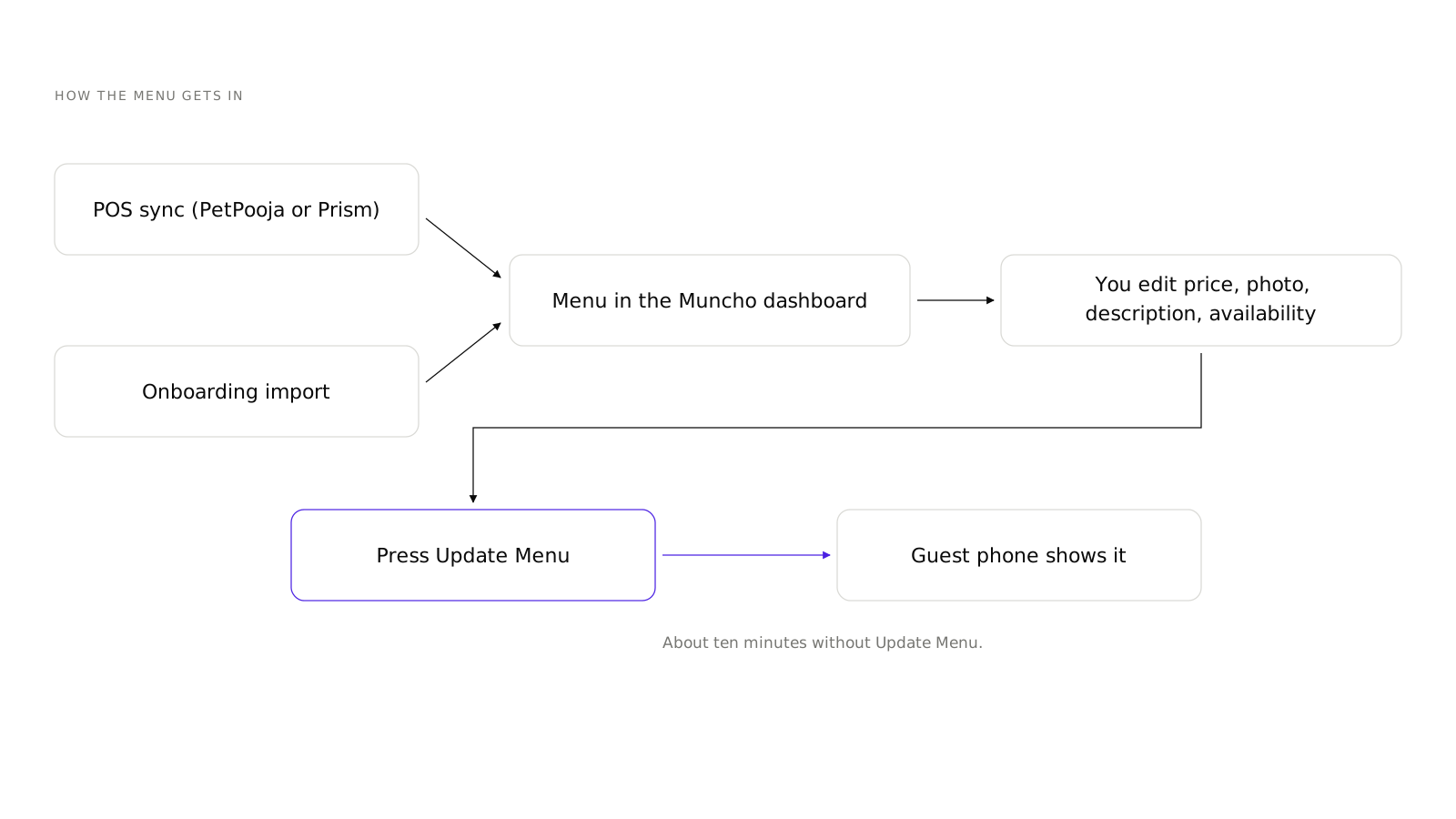
From your POS. At a PetPooja venue the menu comes across by webhook plus a periodic resync: items, categories, variations, add-ons, taxes and packaging charges. At a Prism venue, Muncho pulls outlets, tables, taxes and items from your Prism server. Either way the POS is where the menu is authored, and Muncho is a mirror with a guest-facing layer on top.
From an onboarding import. If you do not run a POS, the menu is imported during onboarding. That import is run by the Muncho side, not by you from a settings page.
What does not exist: a Swiggy or Zomato import, a PDF import, and menu parsing from a photo or pasted text. The last one is written and sitting on an unmerged branch, and the wizard's own steps for it are switched off in production. If a demo showed it to you, it was behind a flag.
How is the menu organised?
Three levels, and a fourth word that trips people up.
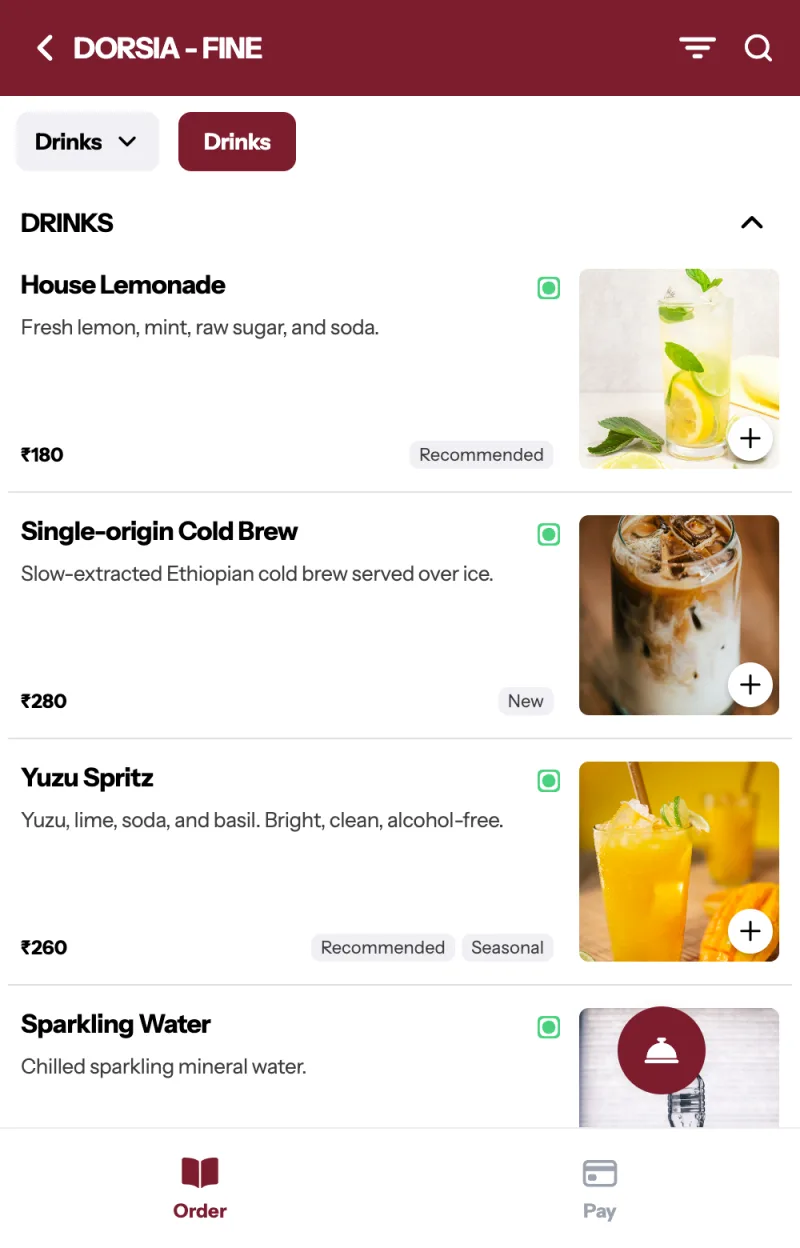
- Menu Group holds categories. Group order is per channel.
- Category holds dishes. Each category has an in-stock switch.
- Dish is the item. The interface says dish, never item.
- Sections means outlets. The dish editor's per-outlet accordion is headed Sections, and the aggregate options are "All sections" and "All channels".
Menu groups and categories belong to the restaurant. Price, stock, ordering and packaging are per section. If a group is missing from the section you are looking at, you see "Live on" with the section names, or "Not on this section", and no switch to change it.
What can you actually edit?
Open a dish and you get, in order: Display Name up to 80 characters, Description up to 255 and only at Prism venues, Gallery allowing a maximum of one video and three images at up to 20MB each, with PetPooja venues limited to video only, Type & Spicy Meter where Type is Veg, Non-Veg, Egg or Liquor and again Prism only, Upselling Dishes to a maximum of four, Tags to a maximum of two, Addon Groups, Variations & add-ons, and Sections.
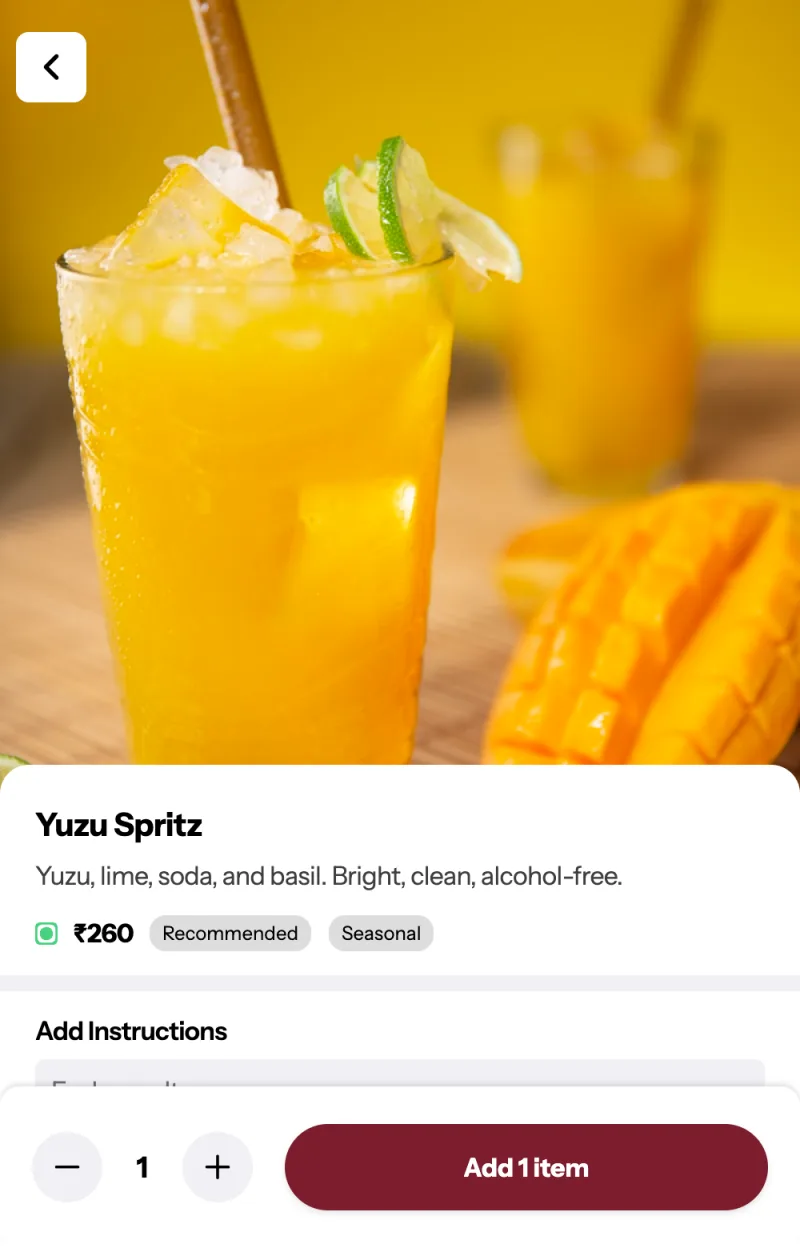
Each section row shows the price or "Not set", an in-stock switch, and badges where the POS is overriding you: "(Inactive in PetPooja)", "(Switched off in PetPooja)", "(Not configured)". Packaging charge sits there read-only with a lock icon and the words "from PetPooja", "from Prism" or "from your POS".
Three fields people look for and do not find: price, any tax field, and item timings or schedules. If that sounds restrictive, set up an account and open a dish: the editor is smaller than most people expect, and that is the point. Price and tax come from the POS, and there is no per-item availability schedule.
How does availability work?
At two levels, and it is an AND.
Item level is the in-stock switch on each section row. Option level lets you switch a single variation or add-on option off per outlet, with sub-labels "Set per channel" and "Hide channels" and a summary reading "Out of stock at n of m channels".
If a row is disabled with "Switched off in PetPooja", the POS is the one saying no, and the tooltip tells you to turn it back on there. Muncho cannot override the POS on availability; both systems have to say yes.
One behaviour to tell your floor about: an out-of-stock dish is removed from the guest menu, not greyed out. There is no sold-out badge. From a guest's point of view the dish was never there, which is usually the better experience and occasionally confusing when a regular asks where it went.
Automatic restock timing is a PetPooja setting. Muncho has no field for it.
How do you get a change in front of guests?
- Make the change in the POS if it is price, tax or packaging; in Muncho if it is availability, a photo, a tag or an upsell.
- Save. Ordinary edits invalidate the cache on their own.
- Press Update Menu in the global header if you need it out now. A modal lists your outlets, all ticked, with Cancel and Update. It reloads afterwards.
- Wait ten minutes if you did not. There is a Redis layer at 600 seconds and a Cloudflare layer at 600 seconds, and then there is whatever tab the guest already has open.
- Check on a phone, not on the dashboard preview.
The MenuGroups page warns about the same thing in its own words: "Order saved, but the live menu may take a few minutes to update."
This matters most on a Friday night when you sell out of something. Switch it off, press Update Menu, and it is gone. Switch it off and walk away, and someone orders it eight minutes later.
What else is on the Menu page?
The section picker, a menu-group picker, Sort, Assign Type, and a Save that only appears once the order has changed. Two drag-and-drop columns, Categories and Dishes. In the global header, Sync PetPooja or Sync Prism or Sync POS, and Update Menu.
Ordering is worth understanding before you spend an hour on it. Dish order is shared on purpose, and the interface says so: "Menu order is shared: saving applies it to every channel." Menu group order is per channel, with a separate "Apply order to all channels" action if you want them aligned.
Addon Groups appears in the nav at Prism venues only. The page is headed Addon Groups with an empty state of "No Add-on Groups", a Group Information card holding a name, a minimum and a maximum, and a right-hand panel of Available Addons.
What should you spend your time on?
Since you cannot change prices and cannot add dishes, the menu work that pays off is narrow and worth doing properly.
- Photography for your top twenty dishes. One video or up to three images per dish. This is the single biggest lever on a phone menu, whether the guest is at a table or ordering from home, because a guest scrolling a list buys what they can see.
- Upsells. Four per dish, surfacing in the cart. Put the obvious partner there, not the most expensive item.
- Tags. Two per dish. Use them for the thing a guest is scanning for, not for marketing adjectives.
- Availability discipline. A menu that offers a dish you ran out of two hours ago is the fastest way to a bad review.
- Ordering. Categories in the order people eat, dishes in the order you want them sold.
Descriptions and the veg or non-veg type are Prism-only fields. At a PetPooja venue those come from the POS, so write them there.
What to do on day one
Open the Menu page, pick each section in turn, and read it as a guest would. Then pick three dishes you know are wrong, fix them in whichever system owns them, press Update Menu, and check on your own phone.
Once the menu reads right, the next steps are channel-specific: Dine-in Settings for the table, and delivery charges for your own storefront. If your menu is coming from PetPooja, the integration post explains what each system owns.
Questions restaurants ask
Where is the Add Dish button?
There is not one. The production dashboard has no Add dish or Add category button, on purpose. Menu content comes from your POS sync or from an import run during onboarding, so there is one place where the menu is authored.
Can I upload my menu from a PDF or from Swiggy?
No. There is no Swiggy, Zomato or PDF import. Photo and pasted-text menu parsing is built but not deployed, so do not plan around it.
Can I change a price in Muncho?
No. Price comes from the POS and the dish editor has no price field. The same goes for tax and packaging charge, which are read-only with a lock icon.
How long does a menu change take to reach guests?
About ten minutes, because the menu is cached at two layers, plus whatever tab the guest already has open. Press Update Menu in the global header to push it out immediately.
Why can I not switch this dish back on?
Because the POS has it switched off. The row is disabled with the label 'Switched off in PetPooja' or the equivalent for your POS. Availability is an AND of both systems, so turn it back on there.
Does a dish order change apply to every channel?
Dish order is shared: saving applies it to every channel. Menu group order is per channel, with a separate 'Apply order to all channels' action.
Run this on your own menu
QR ordering at the table, your own delivery and pickup storefront, and payments straight to your account. India plans: Plus Rs 11,999, Pro Rs 23,999, Max Rs 49,999 a year per outlet, plus GST. Usage comes from your wallet.
Related reading
 Guides & Setup
What Is Scan and Pay? Settling a Restaurant Bill From the Table
Scan and pay lets a guest scan the table code, land straight on the printed bill and settle it. Here is how it works and when it does not.
 Guides & Setup
Cover Charge for Pubs and Clubs: Pricing, Redemption, Reporting
How to price a cover charge by day, collect it at the door, redeem it against the bill, and read the redeemed versus non-redeemed split the next morning.
 Guides & Setup
Setting Delivery Charges and a Delivery Radius That Pays
Fixed or per-kilometre, how far to deliver, free delivery thresholds, packaging, and the two things Muncho deliberately does not have.